Part 9 of 10
The tips and tricks that separate casual users from Claude Code wizards. Some of these are documented, some discovered through experimentation, and some came from decompiling the Claude Code bundle.
Extended Thinking: The Real Story
We first introduced extended thinking in Part 2, but here's the complete story.
You've probably heard about "ultrathink" and "think harder." Here's what actually works according to Anthropic's official documentation.
The Think Keyword Hierarchy
Claude Code maps specific phrases to thinking budgets. These are the officially documented trigger words:
Think (~4,000 tokens) — think
Megathink (~10,000 tokens) — think hard, think deeply, think more, megathink
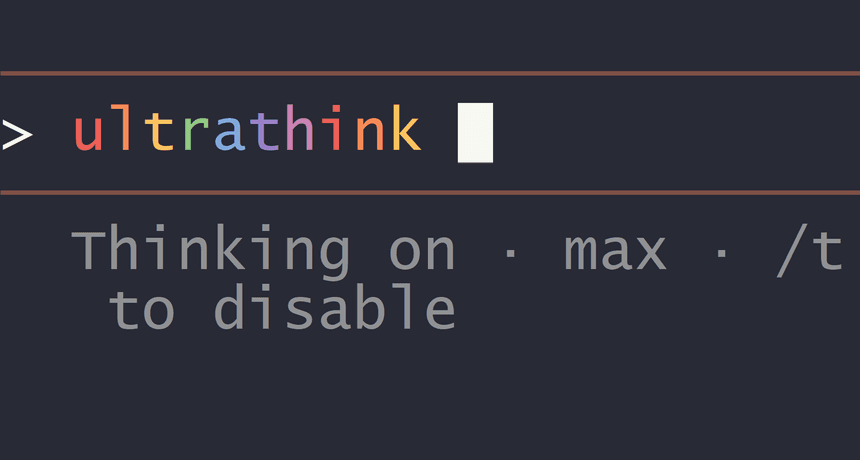
Ultrathink (~32,000 tokens) — think harder, think very hard, ultrathink
Ultrathink about how to architect this authentication system
The higher the budget, the more "mental runway" Claude gets to consider multiple approaches, evaluate trade-offs, and catch edge cases.
January 2026 Updates
A few things changed in Claude Code 2.1:
- Thinking enabled by default for Opus 4.5 — No need to manually trigger it for complex tasks
- Toggle changed from Tab to Alt+T — Avoids accidental activation
- Real-time thinking display — Press
Ctrl+Oto see Claude's reasoning as it happens
When to Use Each Level
ultrathink (~32K tokens) — Architecture decisions, security reviews, complex debugging, anything you'd schedule a meeting for
think hard / megathink (~10K tokens) — Multi-file refactoring, API design, debugging tricky issues
think (~4K tokens) — Quick analysis, code review, understanding unfamiliar code
No keyword — Simple fixes, typos, routine tasks where extended thinking just adds latency
The rule: Match thinking budget to problem complexity. Don't ultrathink a typo fix, don't skip thinking on architecture.
Stay Current with Recent Information
Claude's training data has a cutoff date. For the latest library APIs, recent framework updates, or current best practices:
Use Context7 MCP Server: Fetches real-time, version-specific documentation. See Part 7: MCP Servers for setup.
"use context7 to look up the current API for React Query v5"
Ask Claude to search online: Claude can perform web searches for recent information.
"search online for the latest Supabase auth patterns in 2026"
This ensures you're working with current APIs, not deprecated ones from Claude's training data.
Multi-Window Power Moves
Don't wait for one task to finish. Run multiple Claude Code instances simultaneously—each in its own terminal, each with isolated context.
Sound Notifications: Know When Claude's Done
When juggling multiple windows, you need to know when Claude finishes without constantly checking. Enable the terminal bell:
Claude config set --global preferredNotifChannel terminal_bell
You'll hear a beep when Claude completes a task or needs input. No more context-switching to check progress.
For richer notifications, use a hook in ~/.claude/settings.json:
{"hooks": {"Notification": [{"matcher": "","hooks": [{"type": "command","command": "afplay /System/Library/Sounds/Ping.aiff"}]}]}}
This plays a sound on macOS whenever Claude needs attention. On Linux, use paplay or aplay instead. Windows users can use powershell.exe -c "[System.Media.SystemSounds]::Beep.Play()".
Cross-Repo Work: Reference Without Modifying
Working on a frontend that calls a backend API? Don't run Claude in both repos simultaneously. Instead, give Claude read-only access to the backend from your frontend project.
In your frontend's .claude/settings.json:
{"permissions": {"additionalDirectories": ["../backend-repo/"],"allow": ["Read(../backend-repo/**)","Grep(../backend-repo/**)"],"deny": ["Edit(../backend-repo/**)","Write(../backend-repo/**)"]}}
Now Claude can read the backend controllers and models to understand the API, but can't accidentally modify them. Ask things like:
"Check ../backend-repo/src/controllers/ for the user endpoints and wire up the frontend to match"
Claude reads the backend, understands the API shape, and writes only to your frontend.
Same Project, Different Branches: Git Worktrees
When you need to work on multiple features in the same repo, git worktrees let you check out different branches in separate directories:
# Create worktrees for parallel featuresGit worktree add ../myproject-dashboard feature/user-dashboardGit worktree add ../myproject-notifications feature/email-notifications
Now you have:
Myproject/ # main branchMyproject-dashboard/ # feature/user-dashboard branchMyproject-notifications/ # feature/email-notifs branch
Run Claude in each directory—completely isolated sessions, no branch switching conflicts.
Why This Works
- Each Claude session has isolated context
- Read-only access prevents accidental cross-repo changes
- You can reference external code without risking modifications
- Context from one task doesn't pollute another
Cleanup Worktrees
When done with a feature:
Cd myprojectGit merge feature/dashboardGit worktree remove ../myproject-dashboard
Screenshot and Image Input
Claude Code can see images. Drag and drop screenshots directly into your terminal.
How It Works
- Take a screenshot (Cmd+Shift+4 on Mac)
- Drag the image file into your Claude Code terminal
- Ask about it
Use Cases
UI Debugging:
[drag screenshot of broken layout]What's wrong with this layout? The button should be aligned right.
Design Implementation:
[drag mockup image]Implement this design using Tailwind CSS
Error Screenshots:
[drag screenshot of error dialog]What does this error mean and how do I fix it?
Mermaid Diagram Generation
Have Claude create visual diagrams you can render anywhere.
Architecture Diagrams
Generate a mermaid diagram showing the authentication flow in this app
Output:
Where to Render
- mermaid.live - Online editor with live preview
- GitHub - Renders mermaid in markdown files and comments
- VS Code - With mermaid preview extension
- Notion - Supports mermaid code blocks
Diagram Types
Create a mermaid flowchart showing the order processing states
Generate a mermaid class diagram for the data models
Make a mermaid ER diagram of the database schema
Memory Bank Pattern
Persist context across sessions without bloating CLAUDE.md. This pairs well with the Document + /clear Strategy from Part 2.
Setup
Create a memory directory:
Mkdir -p .claude/memory
Session Memory File
# .claude/memory/current-session.md## Active FocusImplementing user dashboard feature## Decisions Made- Using React Query for data fetching (decided 2024-01-15)- Chart library: Recharts (lighter than D3 for our needs)- State: Zustand (team already familiar)## Blocked On- Waiting for design review on mobile layout- Need API endpoint for activity feed## Recent Changes- Added DashboardLayout component- Created useUserStats hook- Set up Recharts for usage graphs## Next Steps1. Implement activity feed once API ready2. Add export functionality3. Mobile responsive tweaks
Using Memory Files
Start sessions with:
Read .claude/memory/current-session.md and continue where we left off
Update at end of sessions:
Update .claude/memory/current-session.md with our progress today
Token Optimization Tricks
Save money and improve response quality.
Prefer /clear Over /compact
January 2026 Update:
/compactis now instant (v2.0.64+) and auto-compact triggers at 75% capacity. Also try/contextto check MCP server usage before compacting.
As we covered in Part 2, /compact is tempting but risky. The summarization is opaque—you don't know what gets preserved or lost.
Most of the time, /clear is better:
- Starting something new
- Less than half your context is relevant
- You can easily re-establish what matters
If you must use /compact, guide it:
/compact Focus on preserving the authentication flow and database schema decisions
Reference, Don't Paste
Bad (wastes tokens):
Here's the code:[pastes 500 lines]Fix the bug in this
Good (efficient):
Fix the bug in src/auth/login.ts around line 45
Claude will read the file itself, only loading what it needs.
Pro tip: Copy Path in VS Code. Right-click any file → Copy Relative Path (or Cmd+Shift+Alt+C). Paste the exact path instead of typing it. No typos, no ambiguity—especially useful for deep nested files or when multiple files have similar names. Combine with line numbers for surgical precision: src/auth/login.ts:45-60
The Document & Clear Pattern
January 2026 Update: This is now built into Plan Mode. When you accept a plan, Claude auto-clears context and loads the plan fresh. Opt out if you prefer keeping context.
For complex multi-session work, use explicit documentation:
"Save our progress and remaining TODOs to docs/feature-plan.md"/clear"Read docs/feature-plan.md and continue where we left off"
You control exactly what persists. No guessing what the summarizer kept.
Model Switching Strategies
Different models for different tasks.
When to Use Each Model
Opus ($$$) — Complex architecture, security reviews, novel problems that need maximum reasoning power.
Sonnet ($$) — General coding and everyday tasks. This is the default and handles most work well.
Haiku ($) — Quick questions, simple tasks, high-volume operations where speed matters more than depth.
Strategic Model Usage
Start complex features with opus:
/model opusPlan the architecture for user permissions system
Switch to sonnet for implementation:
/model sonnetImplement the permission checking middleware we discussed
Use haiku for quick checks:
/model haikuDoes this regex pattern look correct? /^[\w-]+@[\w-]+\.[\w-]+$/
Headless Mode Automation
Script Claude Code for CI/CD and automation using the -p (print) flag.
Basic Usage
Claude -p "analyze this PR for security issues"
The -p flag runs Claude non-interactively and exits when complete. Perfect for scripts and pipelines.
Output Formats
Control how responses are returned:
# Plain text (default)Claude -p "summarize this project"# JSON with metadataClaude -p "list all TODO comments" --output-format json# Stream JSON for real-time processingClaude -p "analyze this code" --output-format stream-json
Tool Auto-Approval
Pre-approve tools to avoid permission prompts in CI:
# Allow specific toolsClaude -p "run tests and fix failures" \--allowedTools "Bash,Read,Edit"# Restrict to specific commandsClaude -p "create a commit" \--allowedTools "Bash(git diff:*),Bash(git log:*),Bash(git commit:*)"
Pipeline Examples
# Automated PR reviewGit diff HEAD~1 | claude -p "summarize these changes"# Pre-commit hookClaude -p "check staged files for secrets" || exit 1# Security scan with JSON outputClaude -p "security review of this codebase" \--output-format json \--allowedTools "Read,Grep" | jq -r '.result'
Session Continuation
Continue conversations programmatically:
# Get session ID from first callSession_id=$(claude -p "start review" --output-format json | jq -r '.session_id')# Continue that sessionClaude -p "now check for performance issues" --resume "$session_id"
Keyboard Shortcuts
Master these to navigate Claude Code faster.
Essential Shortcuts
Escape — Interrupt Claude mid-response. Useful when you see it heading in the wrong direction.
Escape, Escape (double-tap) — Open command history. Scroll through previous prompts and re-run them.
Ctrl+C — Cancel current operation entirely.
Ctrl+L — Clear terminal display (not context, just visual clutter).
Up Arrow — Cycle through your recent prompts.
In VS Code Extension
The Claude Code VS Code extension brings the same capabilities into your editor. It's not a separate product—it's Claude Code running natively in VS Code, sharing the same configuration, commands, and MCP servers.
Cmd+L — Open the Claude panel. This is where you'll spend most of your time—a persistent chat interface that understands your workspace.
Cmd+Shift+L — Send selected code to Claude. Highlight code, hit the shortcut, and Claude sees exactly what you're looking at.
Cmd+I — Inline editing mode. Claude edits code in place with a diff view—accept or reject changes without leaving your file.
Cmd+Shift+P → "Claude" — Access all Claude commands from the command palette.
The extension shares your .claude/ configuration, so custom commands, MCP servers, and CLAUDE.md instructions work identically. The main advantage over terminal Claude Code: visual diffs, inline suggestions, and tighter editor integration.
Voice Input: Talk to Claude
When I'm alone in the room, I often switch to voice. It's faster than typing for explaining complex problems, and sometimes talking through an issue helps clarify your thinking before Claude even responds.
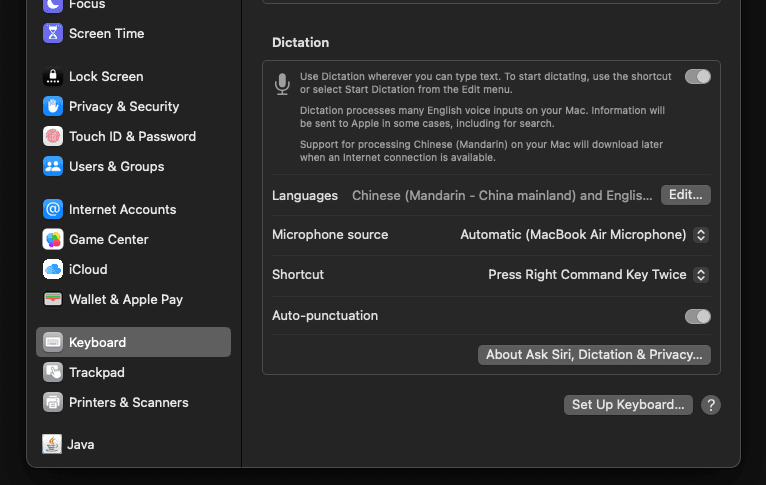
On Mac, setup is simple: System Settings → Keyboard → Dictation → Enable. Then use the dictation shortcut (double-tap Fn by default) anywhere—including the Claude panel.
Voice works especially well for:
- Explaining bugs you've been staring at for hours
- Describing UI changes while looking at a mockup
- Quick questions when your hands are on the trackpad
- Rubber-ducking problems out loud
The combination of voice input with Claude's understanding makes for surprisingly natural conversations about code.
Hidden Productivity Hacks
The "As If" Pattern
Implement this as if you were a senior engineer at Stripe
Review this code as if it's going to production tomorrow
Sets quality expectations without explicit requirements.

The Constraint Pattern
Implement this in under 50 lines
Solve this without adding new dependencies
Constraints often lead to better solutions.
The Explain First Pattern
Before implementing, explain your approach in 2-3 sentences
Forces Claude to think before acting. Catch bad approaches early.
The Rubber Duck Prompt
I'm stuck on [problem]. Ask me questions to help me figure it out.
Claude as debugging partner, not just code generator.
What's Next
You've learned the power user secrets—ultrathink for deep reasoning, worktrees for parallel development, headless mode for automation, and the productivity patterns that make a difference.
In Part 10: Vibe Coding, we'll wrap up with the philosophy of working with AI—when to let Claude drive, when to take the wheel, and how to develop your own intuition for AI-assisted development.
Extended thinking
"think about..." — 4K tokens
"think hard about..." — 10K tokens
"ultrathink about..." — 32K tokens (max)
Git worktrees
git worktree add ../dir -b branch — Create worktree
git worktree remove ../dir — Remove worktree
Keyboard shortcuts
Escape — Interrupt
Escape Escape — Command history
Ctrl+C — Cancel
Up Arrow — Previous prompts
Token optimization
/clear — Reset context (preferred)
/compact Focus on X — If you must, guide it
Model switching
/model opus — Complex tasks
/model sonnet — General (default)
/model haiku — Quick questions
Headless automation
claude -p "task" — One-shot mode
--output-format json — Machine-readable
--allowedTools "Read,Bash" — Pre-approve tools
Stay Updated
Get notified about new posts on automation, productivity tips, indie hacking, and web3.
No spam, ever. Unsubscribe anytime.