
Part 3 of 4
Running Ralph Wiggum autonomously is powerful—but monitoring blind loops can feel like trusting a pilot you can't see. Ralph-TUI solves the visibility problem by giving you a real-time dashboard into every iteration, task, and decision your AI agent makes.
The Visibility Problem
When Ralph Wiggum runs in autonomous mode, it operates independently—reading specs, creating plans, building features, running tests, and iterating for hours or even days. This autonomy is its strength, but it creates a critical challenge: you can't see what's happening without constantly checking files.
The loop could be:
- Stuck on a failing test for 30 minutes
- Iterating on the wrong task due to plan interpretation
- Generating thousands of log lines you'll never review
- Making architectural decisions you'd want to catch early
Enter Ralph-TUI: A terminal interface that provides real-time visibility into the autonomous loop without interrupting execution. It's like adding a flight deck to your autopilot.
Why Ralph-TUI Exists
Ralph-TUI was created to bridge the gap between "fully autonomous" and "completely opaque." While Ralph Wiggum excels at working independently, long-running builds (3+ hours, multi-day projects) need observability for three reasons:
- Debugging efficiency: Catch issues in real-time instead of discovering them after 100 iterations
- Progress tracking: Know which tasks are complete, in progress, or pending
- Confidence building: See the agent's reasoning and decision-making as it happens
- No manual juggling: Automates all the prompt templates, file management, and iteration tracking we set up manually in Part 1 and Part 2
Ralph-TUI runs alongside Ralph Wiggum—it doesn't control or interrupt the loop. Think of it as a monitoring dashboard, not a steering wheel.
Alternative for OpenCode users: opencode-ralph-wiggum includes built-in struggle detection that automatically identifies when the agent is stuck and surfaces it in real-time.
When to Use Ralph-TUI vs. When Not To
Use Ralph-TUI for:
- Long-running builds (3+ hours)
- Multi-day projects with 20+ tasks
- Guided PRD creation (the
/ralph-tui-prdskill walks you through it) - Debugging problematic loops (when Ralph gets stuck)
- Team collaboration (multiple people monitoring progress)
- Learning how Ralph approaches complex problems
Skip Ralph-TUI for:
- Quick 1-2 task builds (< 30 minutes)
- Trusted workflows you've run dozens of times
- Custom prompt templates (use the bash loop from Part 2 if you need fine-grained control)
- Resource-constrained environments (Ralph-TUI adds minimal overhead, but some)
- CI/CD pipelines (use file-based logging instead)
Installation & Setup
Ralph-TUI requires Bun as its runtime. Install bun first if you don't have it:
curl -fsSL https://bun.sh/install | bash
Restart your terminal (or run source ~/.zshrc) to load bun into your path.
Then install Ralph-TUI globally with bun:
bun install -g ralph-tui
Why bun? Ralph-TUI uses bun-native modules for performance. Installing with npm will result in a
Cannot find module '@opentui/core-darwin-arm64'error.
After installation, run the setup command to configure Ralph TUI for your project:
ralph-tui setup
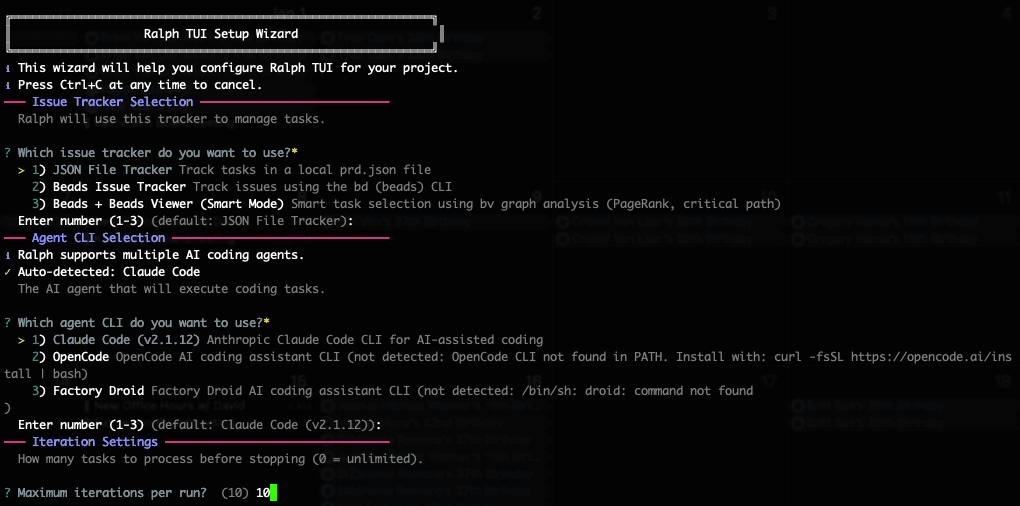
The setup wizard lets you choose your issue tracker:
- JSON File Tracker — Track tasks in a local
prd.jsonfile (simplest option, no dependencies) - Beads Issue Tracker — Track issues using the
bdCLI, parsed from.beads/beads.jsonl - Beads + BV (Smart Mode) — Graph-aware task selection using
bv --robot-triage
What is Beads? Beads is Steve Yegge's git-backed issue tracker designed for AI coding agents. Tasks are stored in
.beads/beads.jsonlwith hash-based IDs (likebd-a1b2) that prevent merge conflicts in multi-agent workflows. It supports hierarchical tasks (epics → tasks → subtasks) and dependency tracking viabd dep add.What is BV? The "Smart Mode" option uses
bv(beads viewer)—a graph-aware triage engine. Instead of Claude parsing JSONL and guessing priorities,bv --robot-triagecomputes PageRank, critical paths, betweenness centrality, and cycle detection to deterministically recommend the highest-impact task. TheselectionReasonin your prompt template explains why that task was chosen.
It also installs three skills to ~/.claude/skills/ as slash commands:
/ralph-tui-prd— Create product requirement documents interactively/ralph-tui-create-json— Convert PRD toprd.jsonformat/ralph-tui-create-beads— Convert PRD to Beads issue tracking format
What are skills? Skills are specialized knowledge modules that Claude loads automatically when you invoke them via slash commands. They extend Claude's capabilities with domain-specific prompts and workflows. See Mastery Part 5: Skills for details on creating and using skills.
First launch verification:
ralph-tui --version
You should see version information (0.3.0 or higher).
Creating PRDs with Ralph TUI
Before Ralph can build autonomously, it needs a clear specification. The /ralph-tui-prd skill transforms your rough idea into a structured Product Requirements Document through an interactive conversation.
Step 1: Describe Your Feature
Run /ralph-tui-prd and describe what you want to build in plain language:
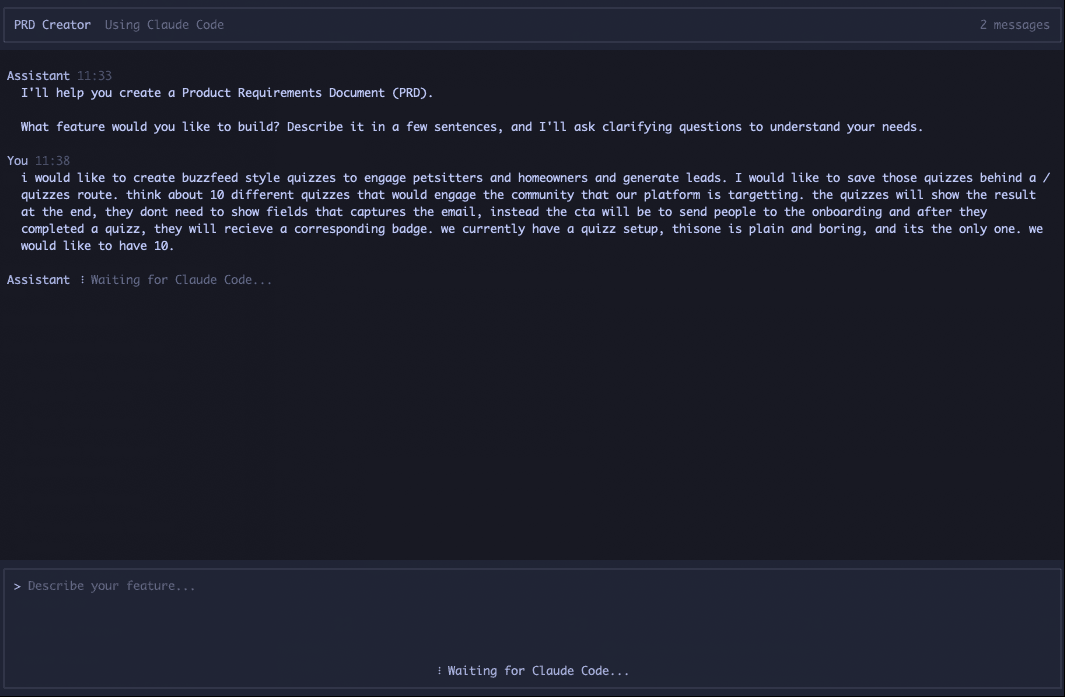
You don't need a formal spec—just explain your feature like you would to a colleague. Include context about your existing setup, target users, and any constraints.
Step 2: Review the PRD Preview
After asking clarifying questions, the skill generates a PRD preview:
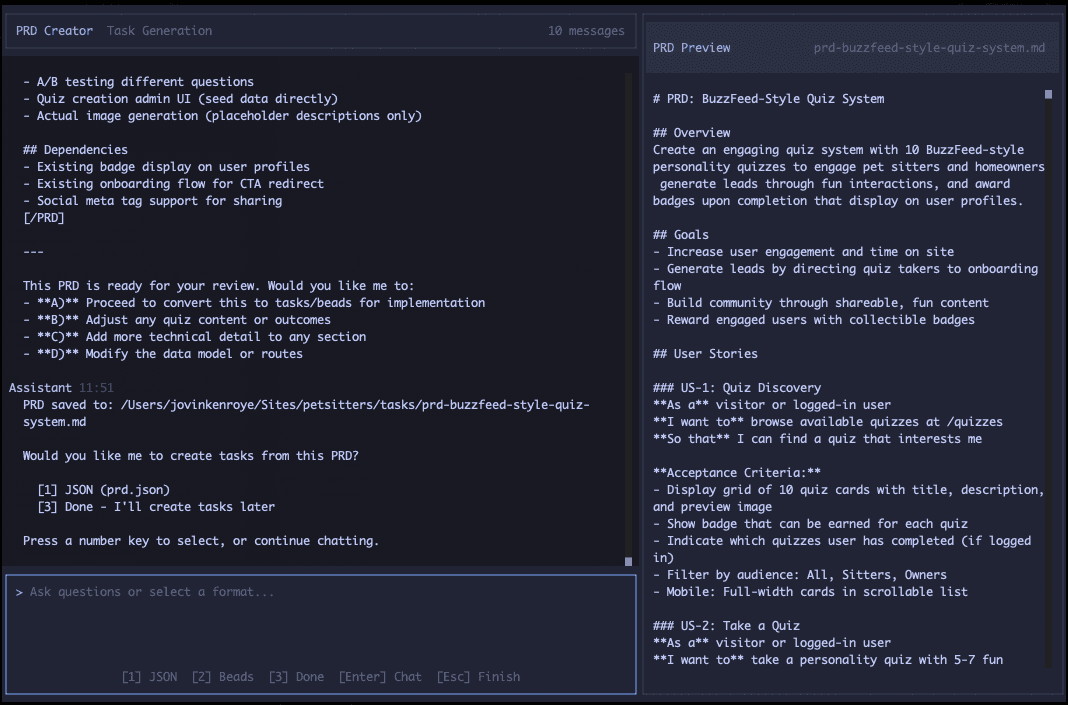
Step 3: Choose Output Format
The skill asks which format you want—JSON file or Beads issues—then automatically converts the PRD. Once complete, Ralph TUI shows the interface for running the autonomous loop.
How Ralph TUI Manages Context
Like the bash loop approach covered in Part 2, Ralph TUI starts a fresh context window each iteration. This is the core insight that makes long-running autonomous builds possible.
Why Fresh Context Matters
Standard agent loops suffer from context accumulation—every failed attempt stays in the conversation history. After a few iterations, the model processes a long history of noise before focusing on the current task. Ralph TUI solves this by spawning a new agent instance each cycle.
Progress persists in files and git, not in the LLM's context window. When context fills up, you get a fresh agent with fresh context.
Key Files
Ralph TUI uses these files to maintain state across iterations:
prd.json— Task definitions and status.ralph-tui/progress.md— Cross-iteration context summary.ralph-tui-session.json— Session state for pause/resume.ralph-tui/config.toml— Project configuration.ralph-tui/iterations/— Iteration logs (iteration-{N}-{taskId}.log)
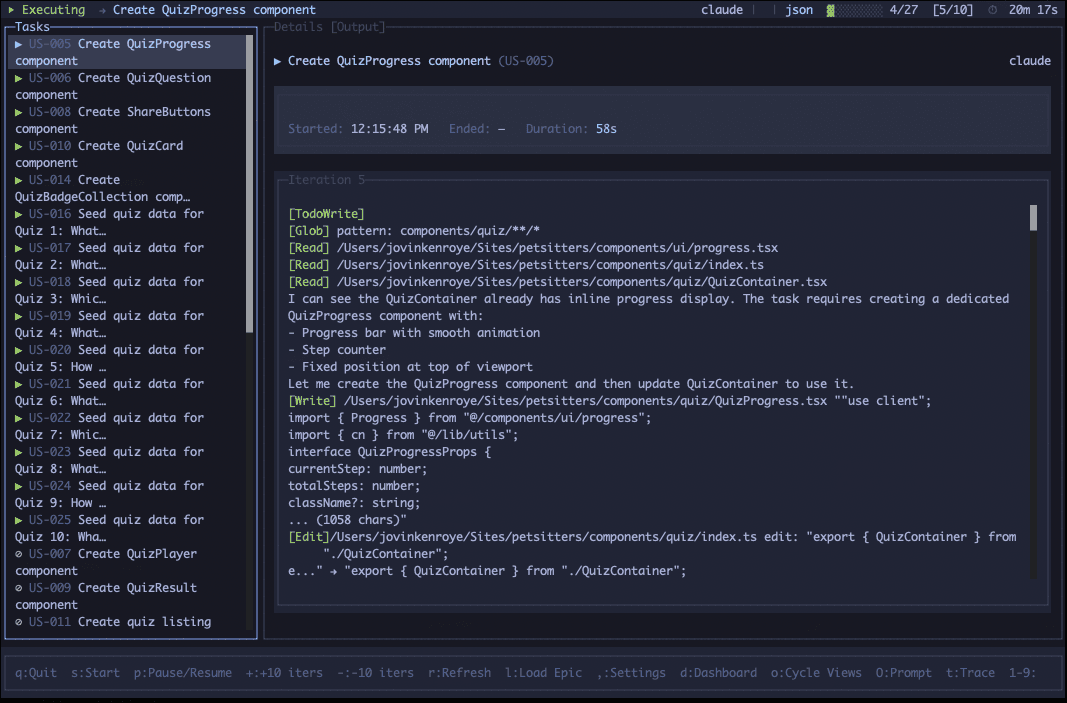
The Execution Cycle
Each iteration follows this pattern:
- Select task — Pick highest-priority incomplete task from
prd.json - Build prompt — Render Handlebars template with task context
- Execute agent — Spawn fresh Claude instance with clean context
- Detect completion — Parse output for task completion signals
- Update tracker — Mark task complete, log iteration, loop
This architecture means each PRD item should be small enough to complete in one context window. If a task is too large, break it into subtasks.
Core Features Deep Dive
Ralph-TUI provides five core capabilities that transform how you interact with autonomous loops:
1. Real-Time Visibility with Keyboard Controls
Watch agent output live as Ralph executes. Navigate through logs, scroll back to see previous iterations, and jump to specific tasks—all without interrupting the autonomous loop.
Why it matters: Long builds generate thousands of log lines. Ralph-TUI filters noise and highlights critical events (test failures, commits, task transitions) so you can focus on what matters.
2. Task Orchestration
Ralph-TUI automatically displays:
- Which task is currently executing
- Task priority (based on
IMPLEMENTATION_PLAN.md) - Tasks completed vs. pending
- Estimated progress percentage
This answers the question: "Where are we in the build?"
3. Session Persistence (Pause/Resume)
Need to stop monitoring but keep Ralph running? Ralph-TUI sessions persist. Close the terminal, grab lunch, resume later—progress tracking continues.
Use case: Start a 6-hour build, monitor for 30 minutes, close Ralph-TUI, check back later. The session shows everything that happened while you were away.
4. Subagent Tracing
When Ralph spawns subagents (for testing, linting, or subtasks), Ralph-TUI traces the call stack. See which subagent is active, what it's working on, and when it returns to the main loop.
What are subagents? Subagents are specialized AI workers with independent context windows that Claude spawns to handle specific tasks in parallel. They can run tests, lint code, or tackle subtasks without consuming the main agent's context. See Mastery Part 6: Subagents for a complete explanation.
Why it matters: Complex builds use 5-10 subagents. Without tracing, you lose visibility into nested execution.
5. Cross-Iteration Context Tracking
Ralph-TUI maintains context between iterations. See:
- What changed between iteration 10 and iteration 11
- Which files were modified in each iteration
- Test results across iterations (did the same test fail 3 times?)
This turns a stream of events into a coherent narrative.
Common Use Cases
Use Case 1: Long-Running Builds (3+ Hours)
Scenario: Migrating a legacy codebase from CommonJS to ESM with 200+ files, updating imports, fixing type errors, and ensuring all tests pass.
Ralph-TUI workflow:
- Start Ralph loop at 2 PM
- Launch Ralph-TUI in a separate tmux pane
- Monitor for 30 minutes to ensure Ralph understands specs correctly
- Detach from tmux (
Ctrl+B, d) - Check back at 6 PM via
tmux attach - Review footer status: "12 completed | 1 in progress | 2 pending"
- Export logs and verify test results
Why Ralph-TUI helps: Without it, you'd have no idea if Ralph got stuck at task 3 or completed all tasks successfully until you manually inspect files.
Use Case 2: Multi-Day Projects
Scenario: Building a complex microservices architecture over 2 days, 50+ tasks.
Ralph-TUI workflow:
- Day 1, 9 AM: Start Ralph, monitor with Ralph-TUI
- Day 1, 6 PM: Ralph is at task 23/50. Export logs, close Ralph-TUI, leave Ralph running
- Day 2, 9 AM: Launch Ralph-TUI again—session shows progress (tasks 24-38 completed)
- Day 2, 12 PM: Ralph finishes. Review complete log export
Why Ralph-TUI helps: Session persistence means you don't lose visibility into what happened during extended runs. Logs show every decision Ralph made while you were away.
Use Case 3: CI/CD Integration
Scenario: Running Ralph in a GitHub Actions workflow or remote server for automated feature builds.
Ralph TUI supports headless mode for CI/CD pipelines:
ralph-tui run --headless
This executes the agent autonomously without interactive controls.
Remote monitoring: You can monitor headless instances from your local machine using Ralph TUI's remote management:
# On remote/CI serverralph-tui run --listen --prd ./prd.json# On your local machineralph-tui remote add ci server.example.com:7890 --token <TOKEN>ralph-tui
The TUI displays tabs for local and remote instances with connection status indicators. Security features include two-tier tokens, audit logging, and automatic token rotation.
See the Ralph TUI documentation for full remote setup details.
Best Practices
Always Start on a Fresh Branch
Before launching Ralph, create a dedicated feature branch:
git checkout -b feature/my-ralph-task
Why this matters:
- Ralph makes frequent commits—isolating them keeps your main branch clean
- Easy rollback if something goes wrong (
git checkout main && git branch -D feature/my-ralph-task) - Clean PR history when you're ready to merge
- Multiple Ralph runs can work in parallel on different branches
Don't run Ralph on main/master. If Ralph gets stuck in a loop or makes architectural mistakes, reverting dozens of commits on your primary branch is painful.
When to Pause/Resume
Pause (press Space) when:
- You see an error and want to read logs carefully
- You're searching for a specific event with
/ - You want to copy-paste log output
Resume (press Space again) when:
- You've finished analyzing
- You want to see real-time updates again
Don't pause indefinitely—the log buffer still grows in the background. If you pause for > 30 minutes, consider exporting logs and restarting Ralph-TUI.
Adjusting Iterations On-the-Fly
Need more iterations than you originally planned? Or want to wrap up early?
+— Add more iterations to the current run-— Reduce remaining iterations
Use + when:
- Ralph is making good progress but running low on iterations
- A task is more complex than expected and needs more cycles
- You want to extend an overnight run without restarting
Use - when:
- Ralph completed the core work and remaining tasks are optional
- You need to free up resources for another build
- The current approach isn't working and you want to stop gracefully
This beats killing the process—Ralph finishes its current iteration cleanly and commits progress before stopping.
Log Management
Export logs regularly (every 1-2 hours for long builds):
- Press
eto export - Name the file descriptively:
ralph-build-iteration-1-to-25.txt
Why: If Ralph crashes after 6 hours, you'll have logs up to your last export. Without exports, you might lose everything.
Automation: Use cron to auto-export every hour:
0 * * * * cd /path/to/project && ralph-tui export --output logs/ralph-$(date +\%Y-\%m-\%d-\%H-\%M).txt
Multi-Session Handling
Ralph-TUI supports one session per project. If you start multiple Ralph loops in different directories:
# Terminal 1cd /projects/api-v1 && ralph loop PROMPT_plan.md# Terminal 2cd /projects/api-v2 && ralph loop PROMPT_plan.md
You can monitor both with separate Ralph-TUI instances:
# Ralph-TUI 1cd /projects/api-v1 && ralph-tui run# Ralph-TUI 2cd /projects/api-v2 && ralph-tui run
Each Ralph-TUI connects to its respective Ralph loop via directory context.
Tmux workflow for multi-session:
# Create tmux sessiontmux new -s ralph-monitoring# Split into 4 panesCtrl+B, % (vertical split)Ctrl+B, " (horizontal split in left pane)Ctrl+B, " (horizontal split in right pane)# Pane 1: Ralph loop 1cd /projects/api-v1 && ralph loop PROMPT_plan.md# Pane 2: Ralph-TUI 1cd /projects/api-v1 && ralph-tui run# Pane 3: Ralph loop 2cd /projects/api-v2 && ralph loop PROMPT_plan.md# Pane 4: Ralph-TUI 2cd /projects/api-v2 && ralph-tui run
Now you can monitor two autonomous builds side-by-side.
Resource Monitoring
Ralph-TUI itself is lightweight (~20 MB memory, under 1% CPU), but long-running sessions can accumulate logs that consume disk space.
Check disk usage:
du -sh ~/.ralph-tui/sessions ~/.ralph-tui/archives
If you see > 1 GB, clean up old sessions:
rm ~/.ralph-tui/sessions/*.jsonrm -rf ~/.ralph-tui/archives/2025-* # Delete archives from 2025
Automated cleanup: Add to ~/.ralph-tui/config.json:
{"cleanup": {"enabled": true,"maxAge": 7}}
This deletes sessions and archives older than 7 days.
What's Next
You now have full visibility into Ralph's autonomous loops with Ralph-TUI.
In Part 4: Advanced Patterns & Troubleshooting, we cover advanced prompt engineering, common pitfalls, comprehensive troubleshooting strategies, and enterprise-grade patterns that will make you a Ralph expert.
Installation
curl -fsSL https://bun.sh/install | bash then bun install -g ralph-tui then ralph-tui setup
Start monitoring
ralph-tui run
Keyboard controls
Space — Pause/resume auto-scroll
/ — Search logs
e — Export logs
q — Quit (Ralph continues)
Ctrl+C — Emergency stop
+ — Add more iterations
- — Reduce remaining iterations
View switching
1 — Main log
2 — Task list
3 — File changes
4 — Test results
Key takeaways
Ralph-TUI provides essential visibility for autonomous loops without interrupting execution
Keyboard controls enable hands-off monitoring with search, export, and session persistence
Session persistence supports multi-day projects
Task orchestration shows real-time priority through IMPLEMENTATION_PLAN.md
Perfect companion for long-running builds
Stay Updated
Get notified about new posts on automation, productivity tips, indie hacking, and web3.
No spam, ever. Unsubscribe anytime.